
Interval Guard — Strategy Settings Guide
Interval Guard is built to keep your trading rules consistent. The goal is not to “predict everything” — that is fantasy land with a login screen. The goal is to define when the bot is allowed to trade, how much risk is allowed per session, block bad entries before they happen, and protect open trades when the market moves against the position.
Overview
Interval Guard automates rule enforcement on Kalshi 15-minute crypto interval markets. It does not predict the future — it enforces gates faster and more consistently than a human clicking around under pressure.
The bot has four jobs:
- Define when the bot is allowed to trade
- Define how much risk is allowed per session
- Block bad entries before they happen
- Protect open trades when the market starts moving against the position
Strategy Panel
The Strategy panel controls when the bot can enter a trade. These settings decide the market, side, quantity, entry timing, acceptable odds, and cushion from the target.
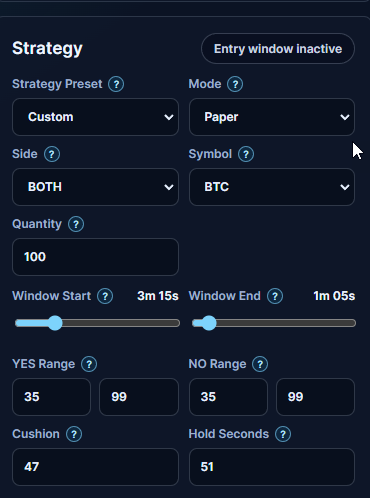
Strategy Preset — Custom
Custom means you are manually controlling the strategy settings. Use Custom when you want to tune entry window, YES and NO odds ranges, cushion, hold time, quantity, risk rules, or velocity protection. If you change a preset value, the strategy should be treated as Custom.
Mode — Paper
Paper mode simulates trades without sending real orders. Use it when testing a new setup, learning how the gates behave, validating a new market condition, tuning velocity protection, or checking if your entry window is too early or too late. Paper mode is where most users should start.
Mode — Live
Live mode sends real orders when all gates pass. Use Live only after:
- your license allows live trading
- Kalshi credentials are connected
- Paper mode behavior is clean
- you understand the risk settings
- you are comfortable with missed fills, fast moves, and real losses
Live trading is not magic. It is just automation with consequences.
Side
BOTH — the bot evaluates both YES and NO and chooses whichever side fits the current rules. If YES odds are in range but NO is not, only YES is considered, and vice versa.
YES — the bot only looks for YES entries. Use when your strategy is built around the market finishing above the target.
NO — the bot only looks for NO entries. Use when your strategy is built around the market finishing below the target.
Symbol — BTC
The bot is watching BTC 15-minute markets. The symbol must match the active market. If the browser is on BTC but the bot is configured for another symbol, the Symbol gate blocks the trade.
Quantity
Quantity controls how many contracts the bot attempts to trade. Quantity 1 = 1 contract, Quantity 100 = 100 contracts. Use smaller quantities while testing. A clean strategy with bad sizing can still hurt — sizing is not decoration.
Entry Window
The entry window controls when during the contract the bot is allowed to enter. In the screenshot: Window Start 3m 15s, Window End 1m 05s — meaning the bot can only enter between 3 minutes 15 seconds before close and 1 minute 5 seconds before close. Outside that window, the bot blocks the trade.
- Earlier entries give the market more time to move against you.
- Later entries reduce time exposure, but may give fewer clean opportunities.
YES Range
Controls what YES price is acceptable. In the screenshot: 35 to 99 — YES must be between 35¢ and 99¢. If YES is 34¢, it is too cheap based on your rule. If YES is 100¢, it is too expensive or unavailable.
NO Range
Controls what NO price is acceptable. In the screenshot: 35 to 99. The bot checks each side separately — if YES is out of range but NO is inside range, only NO can pass.
Cushion
Cushion controls how close the underlying price can be to the target before the bot gets interested. In the screenshot: 47. For BTC, that means the bot wants the underlying price to be within 47 points of the target before the cushion gate can pass.
Hold Seconds
Controls how long the market must stay inside the cushion area before entry is allowed. In the screenshot: 51 — the price needs to remain in the qualifying cushion area for 51 seconds. This prevents the bot from entering just because the price briefly touched the zone. Fast taps are noisy; the hold timer forces the setup to prove itself for a bit.
Risk Settings
Risk Settings control when the bot should stop opening new trades and how protective stops behave. This is the boring part that saves accounts.
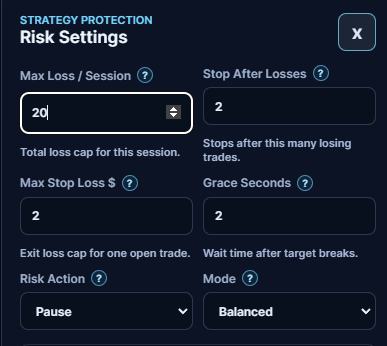
Max Loss / Session — $20
The bot stops opening new trades once the current strategy session reaches $20 in realized losses. A session starts when you start the strategy; a new session should reset this counter.
Stop After Losses — 2
The bot stops opening new trades after 2 losing trades in the current session. Even if the dollar loss is small, the loss-count rule still protects you from a bad session rhythm.
Max Stop Loss $ — 2
The loss cap for one open trade after the target has crossed or the stop logic becomes active. This is different from Max Loss / Session — Max Loss / Session controls the whole session, Max Stop Loss controls one open trade.
Grace Seconds — 2
A short wait period after the stop condition appears, to avoid panic exiting on a tiny flicker. If the stop condition still exists after 2 seconds, the bot can exit. If the condition disappears, the bot may keep monitoring.
Risk Action — Pause
When risk limits are hit, the bot pauses new entries. Other behaviors (monitor-only, disable) may exist depending on app version. Pause is recommended for most users — it stops new damage without killing your ability to inspect what happened.
Stop Mode — Balanced
Stop Mode controls how the bot handles protective exits after risk is active.
- Balanced — middle-ground stop behavior, good for general use.
- Protected — more advanced stop behavior for Pro/Internal users, designed to be more protective.
- Passive — more passive exit behavior for Pro/Internal users; may avoid aggressive exits, but can miss fills in fast markets. Use carefully — cheap exits are cute until they do not fill.
Velocity Protection
Velocity Protection handles danger before the market reaches the target. Stop loss handles what happens after the target is broken or the position is already in trouble. Velocity is the early warning system.
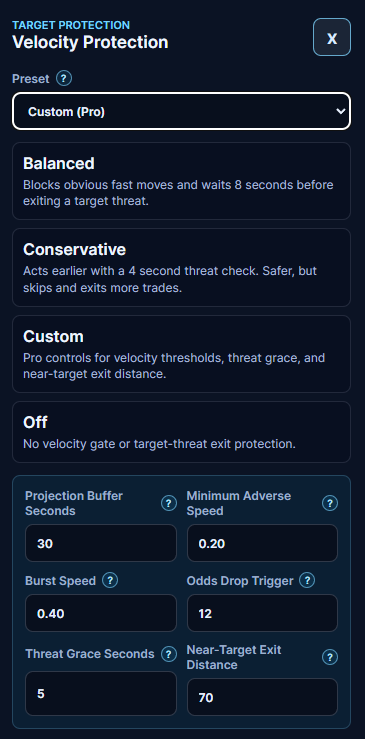
Preset — Balanced
Blocks obvious fast moves and waits longer before exiting target-threat situations. Use when you want protection without blocking too many trades, the market is moving normally, or you are still tuning your setup. Balanced is the default sensible middle mode.
Preset — Conservative
Acts earlier and uses a shorter threat check. Use when markets are moving fast, BTC is whipping around, you want fewer trades, or you would rather miss entries than take unstable ones. Safer, but will skip more trades and may exit more often.
Preset — Custom
For Pro users who want control over the actual velocity thresholds. Powerful, but also where people can outsmart themselves. Change one thing at a time.
Preset — Off
Disables velocity protection. Use only when testing, isolating other gates, or when you understand the risk. Not recommended for live trading in fast BTC markets.
Projection Buffer Seconds — 30
How far ahead the bot can project current movement. If price is moving toward the target fast enough, the bot estimates whether it may reach danger soon.
Minimum Adverse Speed — 0.20
The minimum speed toward the target that starts to matter. Small movement is ignored; real movement gets attention. 0.05 pts/sec → ignored. 0.25 pts/sec → treated as adverse movement.
Burst Speed — 0.40
Catches fast short-window movement — sudden moves that may not look dangerous over a longer window yet. BTC suddenly drops 40 points in a short burst toward the target → Burst Speed can still block or flag the setup.
Odds Drop Trigger — 12
Watches how much the position's odds deteriorate. If your trade value drops by 12 cents, that can count as a threat. Enter YES at 87¢ → market moves → YES drops to 75¢ → 12¢ deterioration → the bot can treat that as a target-threat condition.
Threat Grace Seconds — 5
How long a threat must persist before the bot acts. Threat for 1 second then gone → no exit. Threat persists for 5 seconds → the bot may act. Avoids exits caused by one tiny spike.
Near-Target Exit Distance — 70
How close the market needs to be to the target before the bot allows full target-threat exits. Prevents early exits when the price is still too far away.
Trading Scenario Examples
These examples are not recommendations. They are examples of how different settings behave. Use Paper mode before Live.
Paper Testing A New Setup
Best for: new users, new machines, new strategy settings, testing changes after an update
- Mode: Paper
- Side: BOTH
- Quantity: 1 to 10
- Entry Window: 3m 15s to 1m 05s
- YES Range: 35 to 99
- NO Range: 35 to 99
- Cushion: 47
- Hold Seconds: 51
- Risk Action: Pause
- Velocity: Balanced or Custom
Why: See how the gates behave without risking real funds. Watch whether the bot enters too early, blocks too much, whether velocity stops bad trades, and whether the session risk cap behaves correctly.
Sideways Market Near The Target
Best for: choppy BTC markets, price hovering around the target, setups where both YES and NO can become valid
- Side: BOTH
- Entry Window: 3m 15s to 1m 05s
- Cushion: 47
- Hold Seconds: 51
- Velocity: Custom
- Near-Target Exit Distance: 70
- Threat Grace Seconds: 5
Why: Sideways markets create entries on either side, but also fakeouts. Cushion and hold timer force the market to stay near the zone before entry. Velocity protection blocks entries when price starts moving toward the danger area too fast.
Fast Falling Market
Best for: BTC dumping toward the target, avoiding entries into fast adverse movement
- Velocity: Conservative or Custom
- Projection Buffer Seconds: 30 to 60
- Minimum Adverse Speed: 0.20 or higher
- Burst Speed: 0.40 or higher
- Odds Drop Trigger: 8 to 12
Why: If the market is falling fast toward the target, velocity should block before stop loss is needed. Stop loss is after the trade is already in danger. Velocity is supposed to prevent the ugly entry in the first place.
Fast Rising Market
Best for: BTC ripping upward toward the target, avoiding NO entries while price is accelerating upward
- Velocity: Conservative or Custom
- Burst Speed: 0.40
- Projection Buffer Seconds: 30
- Threat Grace Seconds: 5
Why: A NO trade can look attractive for a moment, then get wrecked if BTC is accelerating upward. Velocity protection should identify that the price is moving toward the target too quickly.
Conservative Capital Protection
Best for: smaller account balances, live testing, uncertain market conditions, after a loss
- Quantity: small
- Max Loss / Session: low
- Stop After Losses: 1 or 2
- Risk Action: Pause
- Velocity: Conservative
- Mode: Paper first, Live only after review
Why: Designed to slow the bot down. May miss good trades, but also avoids forcing trades during messy conditions. Sometimes the best trade is the one the bot refuses to take. Annoying, but usually cheaper.
More Active Trading
Best for: experienced users, clean market rhythm, already-tested strategy settings
- Side: BOTH
- Entry Window: wider if needed
- Cushion: moderate
- Hold Seconds: moderate
- Velocity: Balanced or Custom
- Stop After Losses: 2
- Max Loss / Session: based on account size
Why: Allows more trades while keeping guardrails in place. Do not combine high quantity, wide windows, and weak protection unless you enjoy learning lessons the expensive way.
Testing Without Velocity
Best for: diagnostics, comparing behavior, checking whether velocity is too strict
- Mode: Paper
- Velocity: Off
- Quantity: small
- Risk Action: Pause
Why: Turning velocity off can help you see whether missed trades are caused by entry windows, odds, cushion, or velocity. Do this in Paper mode. In Live mode, Off removes one of the main protections against fast target moves.
How The Gates Work Together
The bot does not enter just because one thing looks good. A trade must pass multiple gates:
- Symbol
- Entry Window
- Odds Range
- Risk
- Cushion
- Velocity
If one gate blocks, the trade does not happen.
That is correct behavior. One failed gate is enough.
Recommended Starting Point
For most users:
- Start in Paper mode
- Use BOTH
- Keep Quantity small
- Use Balanced or Custom velocity
- Keep Risk Action on Pause
- Review Session History after each run
- Move to Live only when Paper behavior makes sense
A clean setup should be boring to watch. If the bot is constantly firing, constantly pausing, or constantly exiting, the settings are probably too loose, too tight, or fighting the current market.
Important Trading Notes
The edge comes from:
- better rules
- cleaner entries
- controlled losses
- not chasing every candle
- reviewing what happened after each session
Use Paper mode. Check the logs. Adjust slowly. The market is already chaotic enough — your settings do not need to join the party.